
Scheduling Events and Appointments
Convergence has facilities for scheduling events, tasks or appointments, for marking dates for deadlines, documents received, etc. Events can be scheduled from the popup menu and the event schdule can be viewed in a number of ways. There are two types of scheduled events for Convergence, appointments that happen at a particular time, and tasks that have due dates and can be spread out across days. There is an optional reminder popup to notify users of today's appointments and assigned tasks.
Appointments may be viewed in monthly, yearly, or daily calendars, and tasks can be viewed in the monthly calendar. Clicking Case Schedule in the navigation menu will display a list of appointments and tasks related to the current case.
Event View Popup
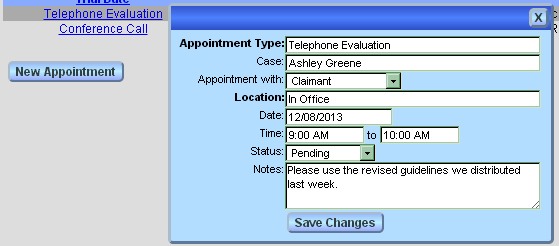
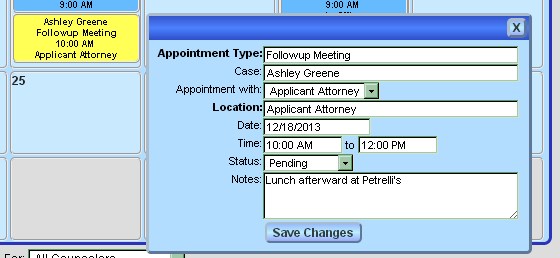
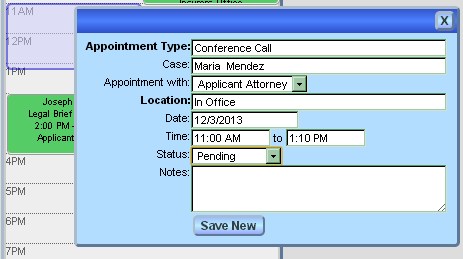
Clicking 'New Appointment' in the popup menu or '+' on the reminder popup will bring up a basic appointment popup that can be used to schedule an appointment. This popup also is used to display detailed information about existing appointments, and can be accessed by clicking on an appointment in any schedule or calendar view.
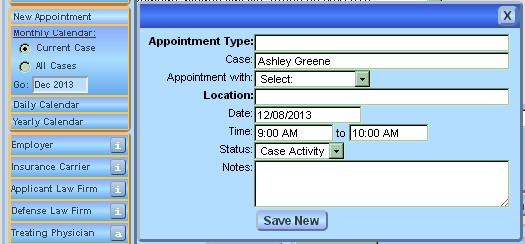
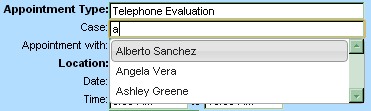
The 'Case:' field is an autofill that will suggest case names if you wish to switch cases. The current case is always filled in if there is one.
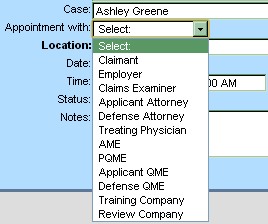
The 'Appointment With:' selector contains a list of all the contact types configured for your database, as well as an entry for your client.
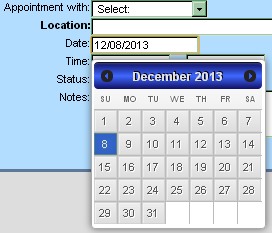
The date and time fields have date and time picker popups to ease entering event times.
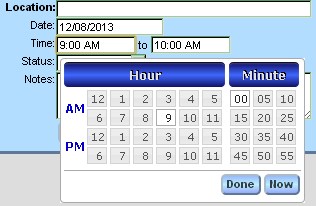
The button 'Save New' will save your new event or appointment. In order for a new event to save, something must be filled into either 'Appointment Type:', 'Appointment With:' or 'Notes'. The popup will not save blank events.
Task View Popup
Clicking 'New Task' on the menu, or clicking '+' on the task reminder popup will bring up a new task popup to fill out.
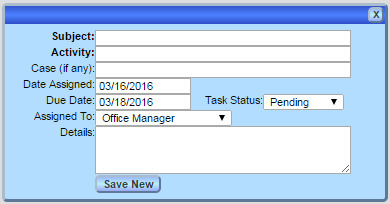
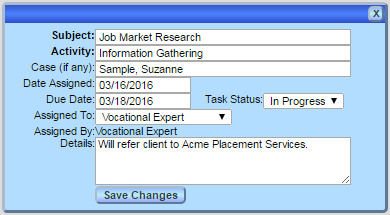
Once a task is saved, it may viewed in the same popup by clicking on links in a montly view, task reminder list, or task manager list.
Task and Appointment Reminder Popup
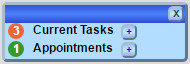
If it is enabled in Preferences by the admin user, a popup will appear to the left of the Convergence top bar. The numbers are the number of appointments or tasks you have today. Clicking on the numbers will show a list of which appointments or tasks are current.
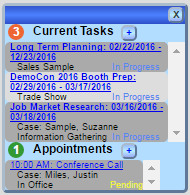
Clicking the blue link for an event will bring up a task or appointment popup for that event. Clicking the number again will hide the list. The "+" buttons to the right are to add a new task or appointment with a blank popup to fill in.
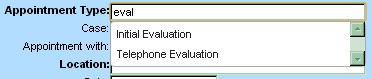
Appointment Types and Locations, Task Subject and Activity
Case Schedule Page
The case schdule page contains lists of all appointments or tasks for the current case, and may be accessed by clicking 'Case Schedule' in the popup menu or the navigation page.

Case activities are highlighted in blue, and the event status is color coded. Pending appointments are marked green, kept appointments yellow, missed appointments red, and case activities are marked blue. Likewise, tasks are color coded by task status.
Clicking on an event link will popup the event popup so that the event may be viewed or edited as needed. If you do not have the privilege to update the event, the data fields will be just text instead.
The buttons 'New Appointment' or 'New Task' will bring up the event popup for a new event.
Monthly Calendar View
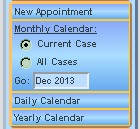
The monthly calendar may be accessed by clicking 'Monthly Calendar' in the popup menu or navigation page. There are radio buttons to view just the current case or all cases, and a 'Go:' field to go directly to a month you type in.
The monthly calendar page has a box for each event in the month, each color coded by event status the same as in the Case Schedule page.
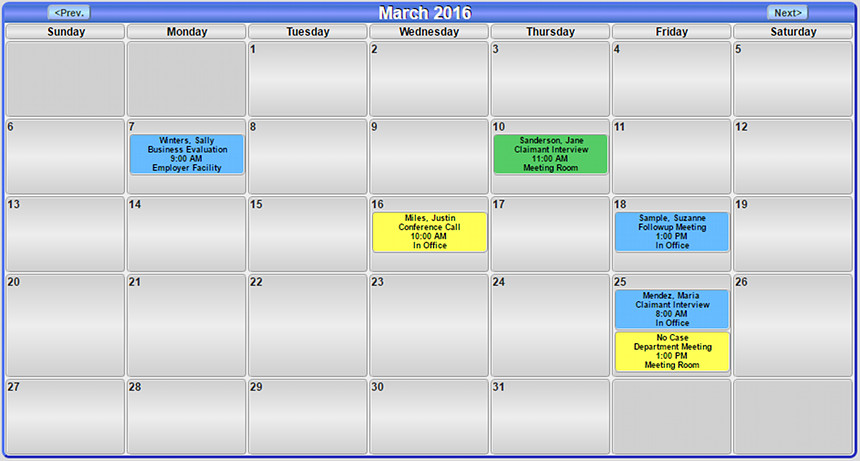
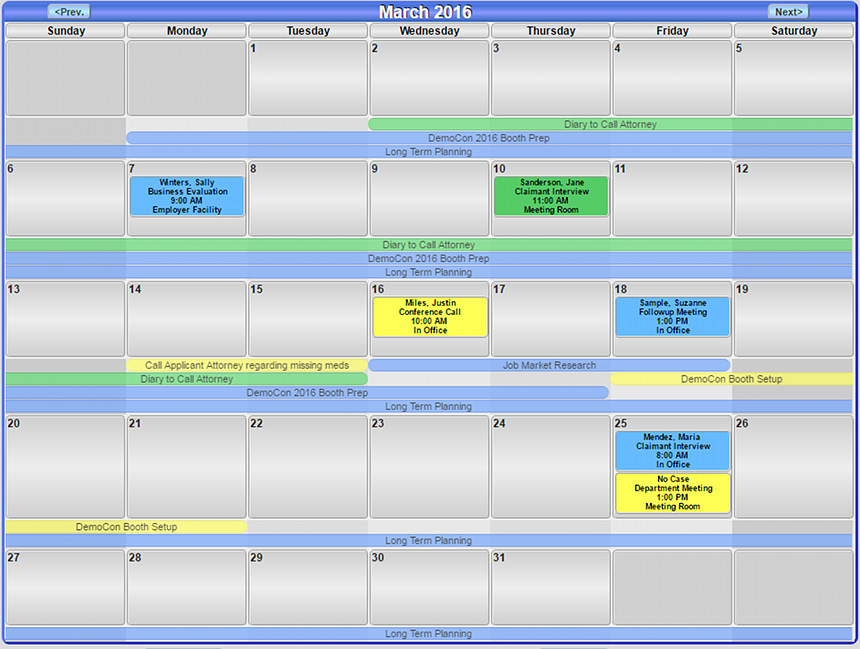
When tasks for the current case or user are present, the tasks will be displayed below each week as horizontal bars. A button 'Hide Tasks' at the bottom of the calendar may be used to hide the task bars to see only appointments.
Clicking on an event's box in the calendar will bring up the event popup filled with that event's data, and ready to edit if privileges permit. Both appointment and task boxes are linked to their event popup in this view.
There are two ways to schedule events from the monthly calendar. Clicking on the number of a date will bring up a daily calendar popup where new events can be drawn into a time slot. Clicking on a date away from the number or any event boxes will bring up the event popup where you can enter new event data, with the date preset to the date you clicked on.
Daily Calendar View
The daily calendar can be reached by clicking 'Daily Calendar' in the popup menu, or by clicking on a date in the monthly calendar, or control-click on a date in yearly calendars. The daily calendar view is a popup that displays a day's events in their time slot positions, with longer events have a taller box, and shorter events a shorter one. Events may be clicked on to get an event popup for the event. If you have trouble reading a short event's label, you can mouse over the event box and it will temporarily expand to show all its text.

If events in the daily calendar overlap, an extra column is added to the view to keep all events visible.
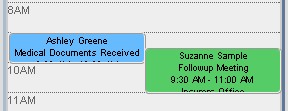
Events can be created in a daily calendar by dragging the mouse across and empty time slot to fill in the time slot for your event. A light blue transparent event box will appear and track your mouse.
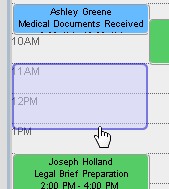
When you let go of the mouse, an event popup will display with the date and time all set up.
Yearly Calendar View
The yearly calendar can be reached by clicking 'Yearly Calendar' in the popup menu, or by clicking the year at the top of a monthly view. The yearly calendar view is a handy way to survey the schedule for an entire year. Each day is color coded according to how many events are in the schedule for that day, with blue being fewer events, and red being many events.
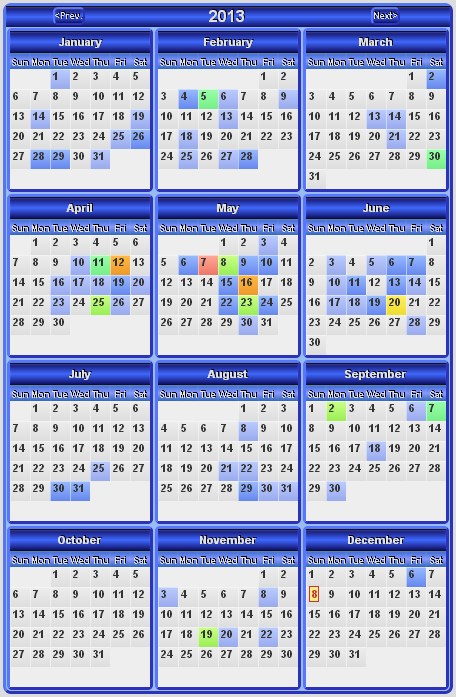
Clicking on a date will pop up a new event popup set to the day. Control-click on a day will pop up a daily calendar for the day, clicking on a month name will send you to a monthly calendar, and the '<Prev' and 'Next>' buttons will go forward or back one year.
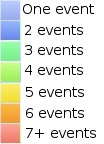
Above is the color key for the yearly calendar. The colors are in spectral order with blue being the least busy, and red the most busy.
Task Manager
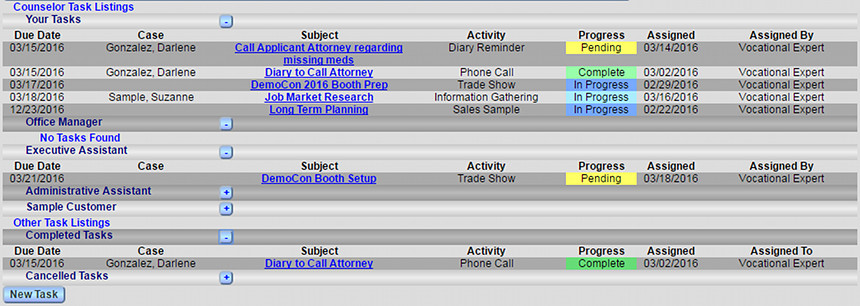
Clicking 'Task Manager' in the menu brings up a page with access to lists of tasks by user, for the current case, and completed or cancelled tasks. Clicking on a task Subject link from any of these lists will popup a task popup for viewing or editing the task.
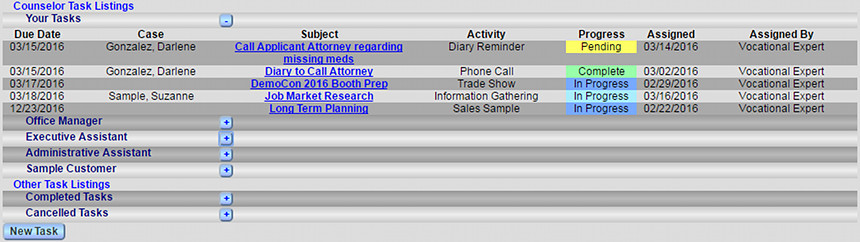
Clicking '+' next to a user name or category will expand a list of those tasks. Clicking '-" will close the task list again.
This manual is published by Convergence Case Management Data Retrieval Software, LLC, whose software products are provided for use by parties who have paid for and have a current license to operate the software described herein.
Information in this manual is subject to change without notice, and does not represent any commitment on the part of Convergence Case Management Data Retrieval Software, LLC. The software described in this manual is furnished under a license agreement and may be used only in accordance with its terms and conditions.
© Copyright 2026 Convergence Case Management Data Retrieval Software, LLC
This manual contains propietary information which is protected by Copyright. No part of this document may be reproduced, translated into any language or computer language, or transmitted in any form whatsoever without the prior written consent of Convergence Case Management Data Retrieval Software, LLC.