
Uploading Case Documents
Among the features of Convergence is a cloud based file storage system that holds files related to your cases. You may upload any type of file into the current case directory. Uploaded files appear in the case file directory alongside generated template based documents. There is a maximum file size limit of 256 megabytes. Files are kept compressed at the Convergence server, and uncompressed on demand when you download a file from the case file directory. This saves cloud storage space. If you exceed your amount of cloud storage, you may need to have your server provider increase your storage, usually involving a small increase in monthly service fees from them.
For more details about the case file directory where uploaded files go, see File Management.
How to upload files
Case file upload buttons can be found in the case directory and in the popout case directory in case lists:


To upload a file to your case's directory, first click 'Choose File' in the upload element, and navigate your hard drive until you select the file you wish to upload. Next, click the 'Attach File:' button to the left, and uploading should begin. There may be a delay while larger files upload. Once the upload is complete, the file should appear in the case directory. If you wish to put the file in a folder, first upload it to the top level case file directory, then drag it into a folder.
Older Versions of Files

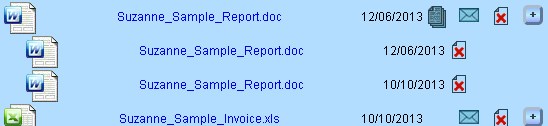
When you upload a file with the same name as another file in the current case, it is assumed that this is a later version of the same file. If an uploaded file has older versions, a little file stack icon will show up next to it in the case file directory. Clicking on this icon will give you a list of older files of the same name and for the same case, and clicking on it again will hide these older files. The older files are indented to the right to indicate which ones they are.
Viewing an Uploaded File
To retrieve an uploaded file, simply click on its name in the case file directory. If a file name appears in the directory in darker blue, non-bold lettering, that is an uploaded file. Once you click on the name of an uploaded file, your browser may ask where you want to store it on your hard drive, unless your browser is set to always download to the same place. You may also see an option to open the file immediately, in which case it will open with its appropriate application, such as MS Word for .doc files or Acrobat for .pdf files.

Files appearing in your case file directory with bold light blue text are template based files, which follow different rules. They can possibly be changed by Convergence if the data or template used to make the document changes. Clicking on these will also prompt you to download a file. If you are using Word export .doc templates (you'll see a .doc file name in light blue, bold), you will need to make sure your copy of Word is set up to handle Convergence exports. See MS Word Export Technical Notes for important information about this. If you are using Word 2013, you will need to designate a trusted file location, or you will get an error opening Convergence .doc files.
Deleting an Uploaded File
Uploaded files may be deleted from the file directory by clicking the little red 'X' file icon, and confirming your choice in the dialog box that pops up. Files deleted this way are not immediately removed from the server, but are marked deleted, and are automatically removed after a period of time has passed. The admin user has the power to restore deleted files that have not been removed, set the amount of time before automatic removal, and remove files that are marked deleted. See Deleted Files in the admin section for details.
This manual is published by Convergence Case Management Data Retrieval Software, LLC, whose software products are provided for use by parties who have paid for and have a current license to operate the software described herein.
Information in this manual is subject to change without notice, and does not represent any commitment on the part of Convergence Case Management Data Retrieval Software, LLC. The software described in this manual is furnished under a license agreement and may be used only in accordance with its terms and conditions.
© Copyright 2026 Convergence Case Management Data Retrieval Software, LLC
This manual contains propietary information which is protected by Copyright. No part of this document may be reproduced, translated into any language or computer language, or transmitted in any form whatsoever without the prior written consent of Convergence Case Management Data Retrieval Software, LLC.