
Convergence Case Contacts
About Case Contacts
Contacts here refers to any contacts, organizations, or parties to a case you may wish to add to a case. These can be employers, lawyers, doctors, training programs, insurance companies, courts, therapists, sales people, or whatever else you may want to connnect to your cases. A 'contact' does not even have to be one of these things if your Convergence admin user sets it up that way. The admin user of your Convergence site can set up the Contact Types you use for your cases, can change the order they appear in, and can set each type to only one per case or multiple per case allowed. See Managing Contact Types for details.
Entering New Contact Info
When you enter a new case, once the new case is saved, you will be prompted to enter in each type of contact for the new case, in the order set up by admin. You may skip contacts that do not apply to the case, and may finish case data at any stage. A contact record must have a contact name or an organization name. If both are left blank, the contact will not save. So long as you keep clicking the 'Save' button, you will be presented with all the contact types in order so they can be added to the case.
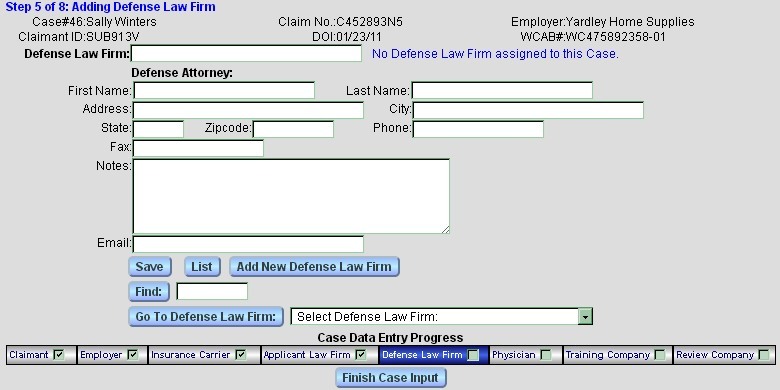
The Case Entry Progress Bar
The progress bar at the bottom of contact entry pages shows you what contact types have been filled in for the current case, and which stage of data entry you are in now. In new case, each time you click 'Save' and save a contact, you should see the progress bar advance, and a form for the next kind of contact.

The blue highlight indicates the current contact type you are entering. If a contact type has been entered for this case, the check box next to it in the progress bar will be checked. You may click on a contact type name on the bar to go directly to the entry page for that contact type.
Once you are done and click 'Finish Case Input', you are presented with a customizable report summarizing the case and contact data you have entered. This report is attached to the case documents list for future reference.
Getting Contact Info
There is a handy way to get information about any contact assigned to your case by using the little buttons marked 'i' in the popup menu next to any contact type that is filled in. A floating contact info popup appears with the information about this case's contact. If more than one contact of a type is assigned to a case, the popup will list them all.
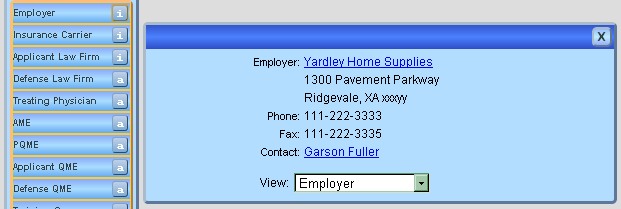
The 'View:' menu at the bottom of the popup allows you to change the information to a different contact type without having to go back the popup menu. Just change the menu selection, and that information is put in the popup.
Assigning Existing Contacts to Cases
To add and existing contact to a case, use the button 'a' next to the contact type in the popup menu. An assign contact list will pop up where you can add a contact to a case by clicking on its checkbox to the right of the listing. This can be handy if there are persons or organizations you work with across different cases. No need to enter the same data twice.
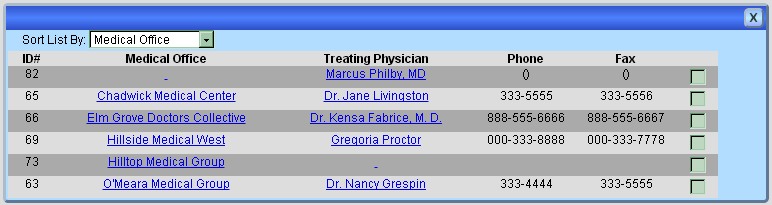
If the 'a' button is not in the popup menu because a contact of this type already is assigned, so there is an 'i' button instead, just go to the Navigation Page where the Assign link is always active for every contact type. Some contact types may allow you to assign more than one to a case (this is set up by admin), and some contacts just one. If you assign a new contact to a case where the contact type only allows one per case, the old contact type is replaced. When more than one is allowed, the new contact is added to the list for the case. If multiple contacts per case are allowed, checkboxes appear on the right of the assign popup, and if only one contact per case, radio buttons instead.
Editing Contact Info
Once a contact has been entered for the current case, it can be accessed by clicking its contact type name in the popup menu, the navigation page, or the progress bar. The edit contact page allows you to change and update contact info, remove a contact from the current case, delete a contact, or add a new one. There are also a quick search for contacts, and a menu to go to other contacts of this contact type.
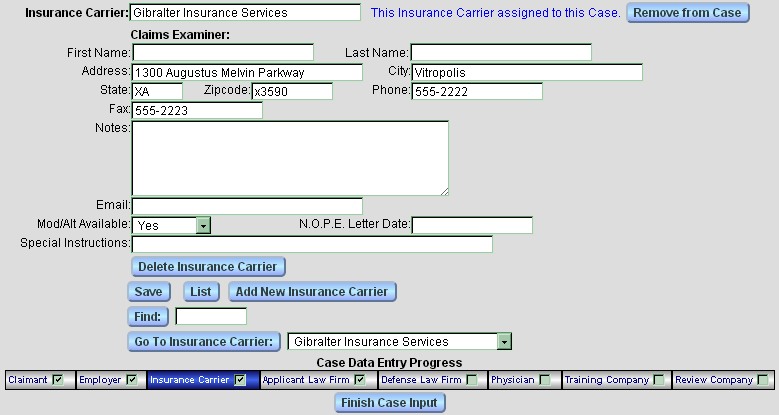
The button and menu 'Go to Contact Type:' allows you to easily move to a different contact of this type, and the 'List' button takes you to a list of all contacts of this type. The 'Find:' button does a quick contact search.
Listing Contacts
A list of all contacts of a type can be gotten by clicking on the 'List' button in the edit contact form, or clicking on the 'List' link for that contact type in the Navigation Page. A checkmark graphic marks the contact or contacts chosen for this case, and the menu 'Sort List By:' allows the list to be sorted by any data field for contacts. Clicking on a contact or organization name takes you to the page for that contact or organization.
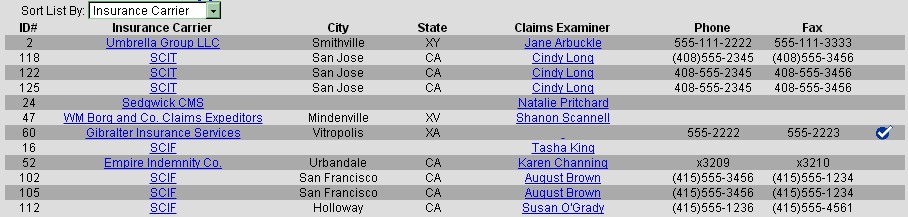
This same sort of contact list is used to display results of contact searches. (See below.)
Searching for Contacts
There are quick find fields for contacts of a given type in the contact editing page and on the Navigation Page for each contact type's section. Just type in part of the name or description you are looking for, click 'Find', and the matching contacts will be displayed in a list. Any match with the organization/office name, the contact name, the city, or the notes for the contact will yield a match for the search list.

This manual is published by Convergence Case Management Data Retrieval Software, LLC, whose software products are provided for use by parties who have paid for and have a current license to operate the software described herein.
Information in this manual is subject to change without notice, and does not represent any commitment on the part of Convergence Case Management Data Retrieval Software, LLC. The software described in this manual is furnished under a license agreement and may be used only in accordance with its terms and conditions.
© Copyright 2026 Convergence Case Management Data Retrieval Software, LLC
This manual contains propietary information which is protected by Copyright. No part of this document may be reproduced, translated into any language or computer language, or transmitted in any form whatsoever without the prior written consent of Convergence Case Management Data Retrieval Software, LLC.