
Logging In
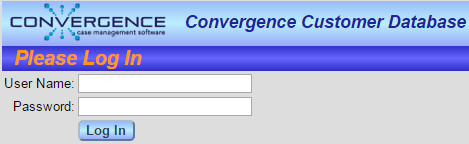
To log into Convergence, you will need a user name and a password. User accounts may be created by the user admin or by a user that has the privilege to create new accounts. Keep your password safe, both safe from being stolen, and safely known by you. Memorize if possible, though avoid anything too easy to guess. Type the URL for you Convergence login page to start out. This usually will look like https://www.mydomain.com/cgi-bin/cnv/login.cgi where mydomain.com is the domain your copy of Convergence runs under. Once you have entered your name and password and clicked the button 'Log In', you should see a list of cases in the database, or a page to start a new case if no cases are in the database yet.
The Convergence Interface Top Bar

At the top of most Convergence pages is a top bar containing basic navigation features, including buttons for the popup menu, the navigation page, the master case list, finding cases quickly, and logging out. The 'Menu' button will bring you to the popup navigation menu shown below, a handy palette for getting around to most common Convergence functions. The 'Navigation' button accesses a full Convergence navigation page that has more functions than the menu popup, also documented below.
The 'Case List' button will take you to a master list of all cases you have the privilege to view. This list can be sorted by any data field, and has popup features for quickly finding more info, or uploading files to a case. For more details about the case list, click here.
The 'Find Cases' button lets you zero in on a case you are looking for without having to pull up the main case list. Just type in any part of the name of the case in the text field by the button, and click to view cases. The search is not case sensitve. For example a quick search for 'and' would match cases for 'J. Sanders', 'Andrew Gregg', or 'Nancy Marchand'. This is handy if you are not sure of exact spelling of a name to search for.
The '?' button is a handy link to the Convergence manual so you can get here quickly to find answers from anywhere in Convergence. The manual page will open in a new tab or window on your browser.
The 'Log Out' button allows you to end your Convergence session. You do not have to log out for a session to end. If a computer crashes or someone forgets to log out, the Convergence session will time out and end automatically.
The Convergence Popup Menu

The button labeled 'Menu' in the top bar displays a popup quick navigation menu. Some functions that are not covered by this menu can be found on the main Navigation page, accessed through the Navigation button on the top bar. (See below.) The popup Convergence menu can be dragged across the screen by its top bar, and closed with the 'X' button. This is standard for most Convergence popups. Depending on your user privileges and your case and contact settings, you may see different items in the menu than are shown above.
Each menu item highlights as you move the mouse across it, and clicking on a menu when it is highlighted will take you to the function named, such as Edit Case, New Note, List Invoices, etc.
If a menu item contains a little button marked 'i', this is a link to a popup with more info about that item. For example the 'i' button next to Edit Case pops up a handy case information popup. If a letter 'a' button is next to a contact type in the menu, that means that none of that type of contact have been assigned to the current case, and the 'a' button will pop up a list of contacts you may assign to the case. If a type of contact or record cannot be assigned across cases, no 'a' button will appear for that line in the menu.
Task and Appointment Reminder Popup
If this feature is enabled, a popup appears at the right top of the screen to indicate what current tasks and appointments you have.
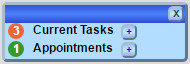
Clicking on the numbers will pop out lists of your current tasks or today's appointments. Clicking on the '+' buttons will allow you too schedule new tasks or appointments. See Scheduling Tasks and Appointments for more details about tasks and events in Convergence.
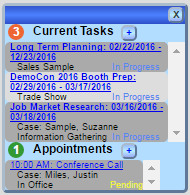
This feature is enabled or diabled by the admin user in Convergence Preferences
Current Case and Case Information Header

When you select a case from a case list, that case becomes the current case. Information about that case is displayed in a header just under the top navigation bar of each Convergence page. If there is no current case, the header will not be displayed. (Admin user only: The case information header is actually a template that can be changed to suit your needs. See the Template Management section of this manual.)
The Navigation Page
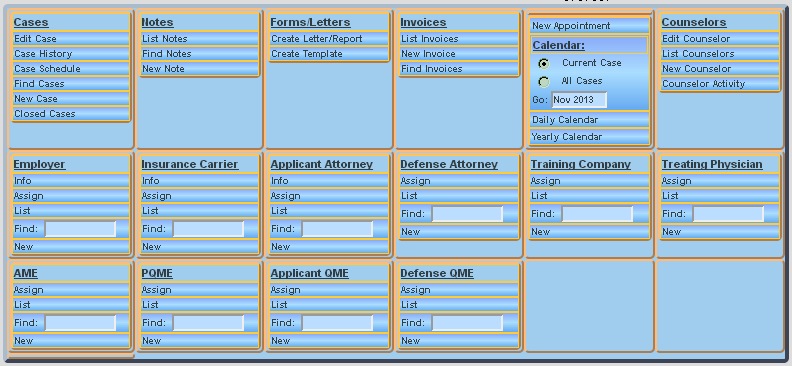
The button labeled 'Navigation' in the top bar links to a master navigation page that links to any Convergence function. This includes some functions not available in the small popup menu. Your navigation page might look different from the one shown, depending on your user privilege level. Functions you do not have the privilege to use are omitted from the screen.
There is a section of the navigation page dedicated to each of the types of contact/parties for cases (Employer, Defense Attorney, Physician, etc) that are set up in your Convergence database. These can be changed by the admin user only. You may access the info on the currently assigned case contact(s), the assign contact popup, a list of all contacts of the selected type, a quick search for contacts, or create a new contact to assign to the current case.
To use the quick find function, just type your search text in the little text field and click 'Find:'. These will give you a list of any contacts/parties whose name, organization name, city, or notes contain the string you typed in.
A Note on Saving Data
Convergence usually will automatically save any data you enter when you navigate to a different Convergence page. Some pages have a 'Save' button on them, but clicking to any other Convergence page will save anyway. The exceptions to this are that if you click a 'Cancel' button, no saving takes place, or if you use the back button to leave a page your data is not saved. The back button should be avoided except when you want to back out of a page without saving.
This manual is published by Convergence Case Management Data Retrieval Software, LLC, whose software products are provided for use by parties who have paid for and have a current license to operate the software described herein.
Information in this manual is subject to change without notice, and does not represent any commitment on the part of Convergence Case Management Data Retrieval Software, LLC. The software described in this manual is furnished under a license agreement and may be used only in accordance with its terms and conditions.
© Copyright 2026 Convergence Case Management Data Retrieval Software, LLC
This manual contains propietary information which is protected by Copyright. No part of this document may be reproduced, translated into any language or computer language, or transmitted in any form whatsoever without the prior written consent of Convergence Case Management Data Retrieval Software, LLC.