
Managing Hourly Rates
Convergence has an admin tool for maintaining an hourly rate menu for use throughout the program. This helps assure consistent hourly rates for invoicing. Each user has a base hourly rate assigned in user administration. There are ways to automatically set different hourly rates for different case types and different case note activities as well. When a new case note begins, the hourly rate menu is set to the current user's hourly rate setting, unless the case type overrides that, or an activity choice sets a different hourly rate. These options should minimize how often hourly rates need to be edited by hand.
To access the hourly rates admin tool, click 'Hourly Rates' in the 'Administration' section of your menu. Only the admin user has access to this page.
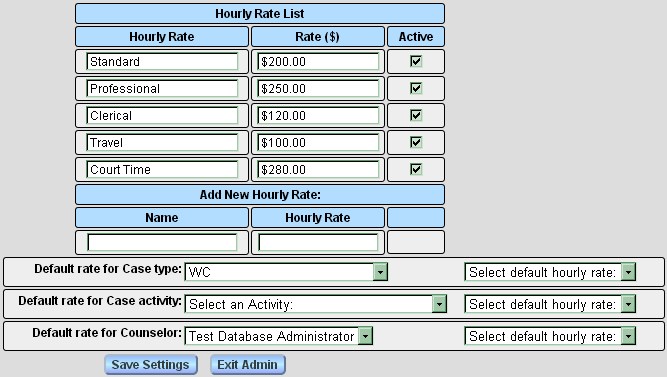
The top entry, 'Standard', is the default hourly rate set in admin preferences. Changing this rate here will change it when it appears in preferences as well. The remaining hourly rates are defined and maintained only on this screen. They may be renamed, revised, activated, or deactivated. New hourly rates are added using the blank set of fields at the bottom of the list. You must click 'Save Setttings' for changes to take effect.
Assigning Hourly Rates to Case Activities and Case Types
At the bottom of the form is a set of menus for setting default hourly rates for users, case types, or case note activities. To set a default for a case type, first pick a case type from the menu next to 'Default Rate for Case Type:'.
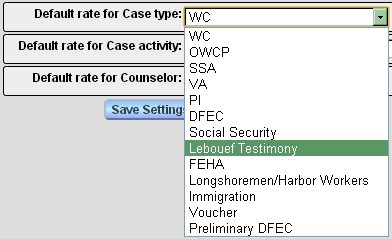
Once you pick a case type, then pick a default hourly rate for the case type.

Once you pick a default rate, it will be remembered if you change case type and set another default. Be sure to click 'Save Settings' to save your changes. In this example, case type 'Le Boeuf Testimony' is set to the hourly rate 'Court Time', which will override normal user rates when a case note for a case of this type is started.
The same method of picking default hourly rates works for the case note activity and user rate settings below. First pick what you want to set a rate for from the left hand menu, then an hourly rate from the right hand menu. The form remembers your rate settings, and will redisplay them if you choose a different setting then return. To remove an hourly rate setting, go to that setting, and select 'Select default hourly rate:' from the right hand menu.
Default rate settings for users on this screen are also the hourly rate settings per user in user administration. A change saved in one screen will show up on the other as well.
This manual is published by Convergence Case Management Data Retrieval Software, LLC, whose software products are provided for use by parties who have paid for and have a current license to operate the software described herein.
Information in this manual is subject to change without notice, and does not represent any commitment on the part of Convergence Case Management Data Retrieval Software, LLC. The software described in this manual is furnished under a license agreement and may be used only in accordance with its terms and conditions.
© Copyright 2026 Convergence Case Management Data Retrieval Software, LLC
This manual contains propietary information which is protected by Copyright. No part of this document may be reproduced, translated into any language or computer language, or transmitted in any form whatsoever without the prior written consent of Convergence Case Management Data Retrieval Software, LLC.