
Managing Convergence Users
Convergence user accounts allow many levels and options of access privilege, so that roles ranging from low level data entry to high level administrators can all work together. Users may have access to only their own cases, only cases they are assigned to, or their groups's cases. Your group in Convergence are the users created by your Convergence account. Any user granted the privilege may view or edit user accounts, with the exception that only the admin user can view or edit the admin account.
The term 'user' is something that can be set in admin preferences, so 'users' can be called whatever your personnel may use such as 'Caseworker', 'Counselor', 'Associate', or whatever your organization chooses. In the sample database images shown, users are called 'Counselors'.
Listing Users
To obtain a list of users, click 'List Users' in the 'Administration' section of the popup menu or navigation page.
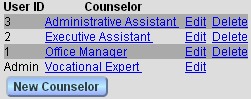
This is a simple, straightforward list of the users you have the privilege to edit. Following a link from a user name or 'Edit' will allow you to view or edit that user's settings and privileges. The 'Delete' link allows deletion of an account after confirming you really want to delete. Deleted users are marked inactive in the database, and not erased. This allows wrongly deleted accounts to be recovered, and keeps historical case records refering to this former user to still reading the correct name and information.
The admin user may not be deleted, as the admin account is essential to system maintenance, and it would be difficult to undelete.
Adding/Editing User Accounts
If you click 'New User' in the 'Administration' section of the menu, or the button 'New User' in a user list, you get a blank screen to enter a new user account.
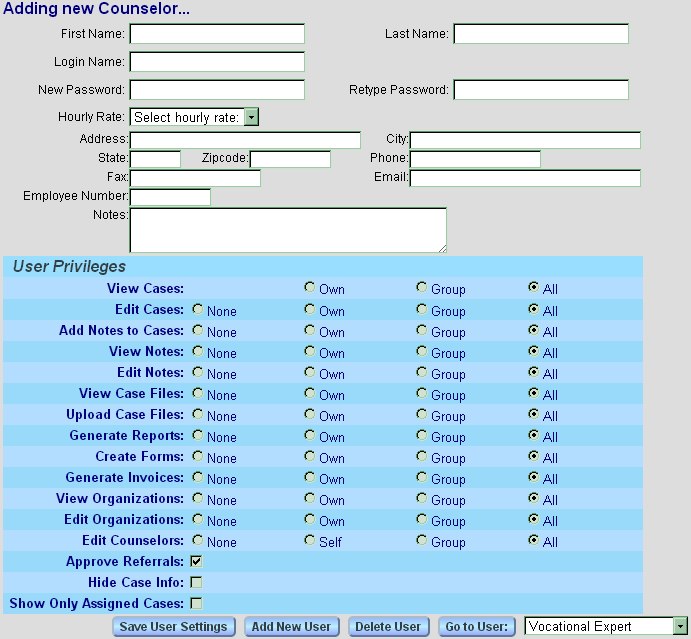
To create a new user, you must at least enter a name, a login name, and a password before clicking 'Save User Settings'. The login name is the name that will be used to log the user in. The hourly rate is the default hourly rate for that user if no other hourly rate settings apply. When that user starts a new case note, this rate will be the one set at start. User hourly rates can also be set by the hourly rates admin tool if your are the admin user.
Other data fields below, such as 'Address:' or 'Email' are customizable data fields. The admin user may add extra information to user accounts, or remove fields your organization does not use. If your organization does not refer to employee numbers, that field can be removed.
When you click 'Save User Settings', 'Edit User' in the menu, or click a link from a user list, the same form as above displays with a user's information filled in.
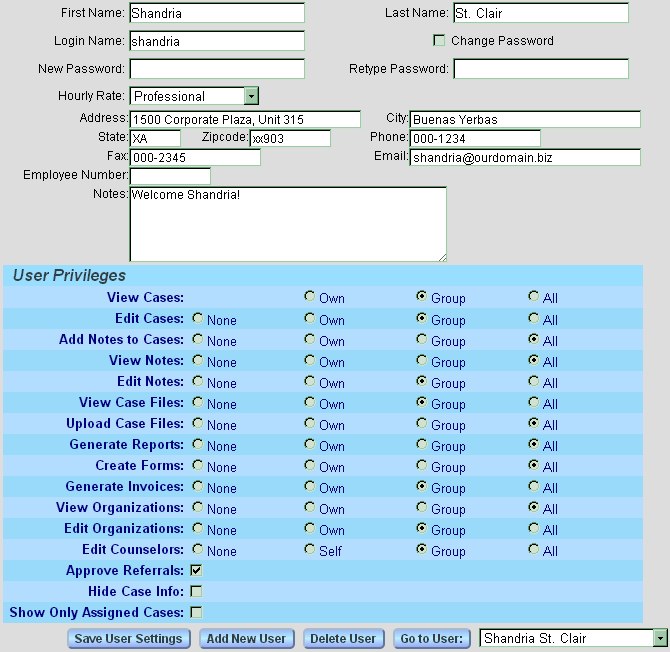
To change a password, first check the checkbox 'Change Password', then enter matching passwords into the 'Password:' and 'Retype Password:' fields.
User information will save whenever you navigate to a new form, 'Save User Settings' saves and takes you back to the same form.
User Privileges
The user privileges matrix controls how much a user logged into Convergence can do, and what can be changed and edited.
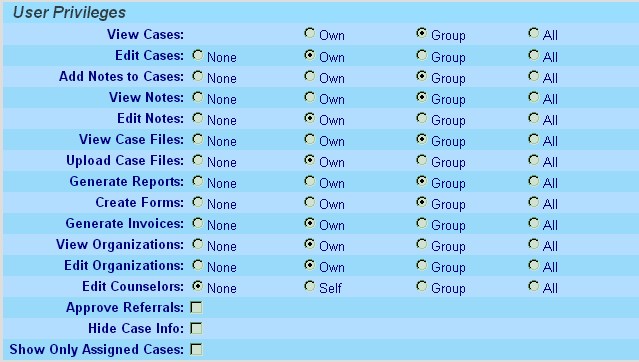
You may not grant a new user more privileges than you have yourself.
Password Management
Passwords are stored in the database in encrypted format. Even with access to the database, it cannot be known what the password was except by guessing. If a password is lost, it can be replaced by the admin user and other users with enough privileges, but may not be recovered. It is recommended that passwords that may be easily guessed, are popular names, or are dictionary words be avoided.
If the admin user password is lost, the account can only be re-accessed by editing the database in PHPmyadmin, and entering a crypt code of the password you want to put in. To get a crypt code from a password, you may use a script provided by Convergence, cryptpw.cgi in the Convergence program directory on your server. Enter a URL in your browser like https://www.mydomain.com/cgi-bin/cnv/cryptpw.cgi?pw=myNewPassword and when you submit the URL, your browser will display the crypt code for your password. That can be copied and pasted into the password column of the caseworkers table in your database to establish a new password. If you lose the password to access your database, consult your ISP. Better yet, don't let it happen. Be sure to keep your passwords both safe from unauthorized parties and from becoming lost or forgotten.
User Roles
The checkbox 'Show Only Assigned Cases' in the user privileges matrix applies to user roles. For a case to be assigned to you, you must have a role assigned to you in that case. The user roles for your Convergence database, if any, are set up in the admin preferences form.

New roles may be added using the 'New Role:' field, and role names may be changed, and roles can be activated or deactivated with the 'In Use' checkboxes. On this form, 'Save Settings' must be clicked for changes to take effect.
If case roles exist, they appear on the edit case form just above case activities. Each role has a user menu set up next to it to choose a user for that role in that case. A user given a role, with their 'Show Only Assigned Cases' checkbox checked, will be able to access that case, and only those cases to which they are assigned a role.
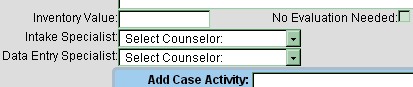
If the menus are left at 'Select User:' no user will be assigned the role for the case.
User Activity and Time Tracking
Clicking 'User Activity' in the popup menu will give you a page summarizing activity for each user in the system. First you will be prompted for a range of dates to report on. The default is so far this year.

After you enter dates and click 'User Activity Report' you get to the user activity page.

For each user you will see the number of case notes generated, total billable hours, billable amount generated, amount invoiced, the number of cases, the number of file uploads, and the number of letters or reports generated with Convergence. The '+' details button pops out a list of that user's case notes for the report period, so you can scan down that user's billable activity at a glance. The notes are listed in chronological order, scroll the list down to see the newest notes.
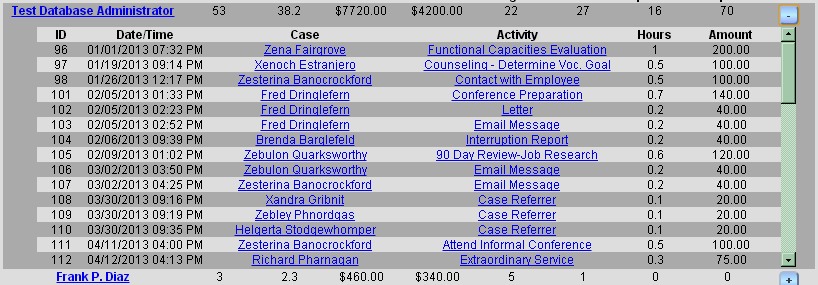
Clicking on a user's name will take you to a detailed user history for that user, also in chronological order.
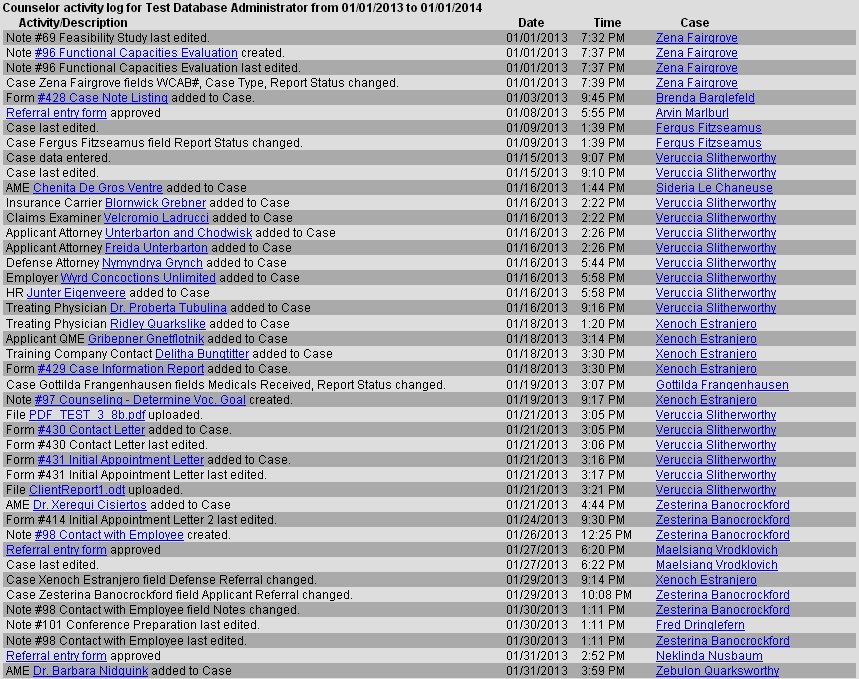
The events listed here are the same as for case history, only organized by user rather than by case. The last column, instead of the user making the change is the case that was changed. The link is to the edit case form for that case.
This manual is published by Convergence Case Management Data Retrieval Software, LLC, whose software products are provided for use by parties who have paid for and have a current license to operate the software described herein.
Information in this manual is subject to change without notice, and does not represent any commitment on the part of Convergence Case Management Data Retrieval Software, LLC. The software described in this manual is furnished under a license agreement and may be used only in accordance with its terms and conditions.
© Copyright 2026 Convergence Case Management Data Retrieval Software, LLC
This manual contains propietary information which is protected by Copyright. No part of this document may be reproduced, translated into any language or computer language, or transmitted in any form whatsoever without the prior written consent of Convergence Case Management Data Retrieval Software, LLC.